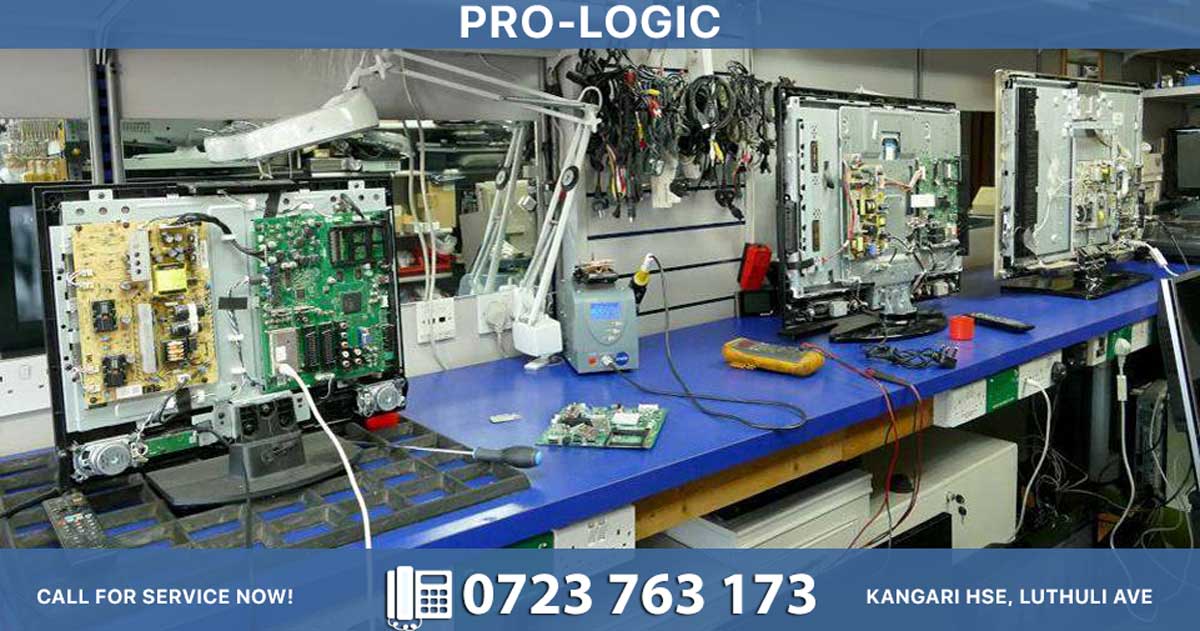
Need TV Repair Services in Nairobi?
Certified technicians dispatched to you — same day.
Charging port problems are among the most common mobile phone faults, preventing your device from charging properly. Most charging issues stem from simple causes like debris, faulty cables, or software glitches that can be fixed at home without expensive repairs.
Common Causes of Charging Port Issues
| Cause | Symptoms | Frequency |
|---|---|---|
| Debris in charging port | Charger won't fully insert, intermittent charging, loose connection | Most common - lint and dust buildup over time |
| Faulty charging cable | Frayed wires, loose connector, phone won't charge | Very common - cables wear out from regular use |
| Damaged power adapter | Adapter overheating, USB port loose in adapter | Common - adapters age and fail |
| Bent or broken pins | Won't charge properly, requires specific angle to charge | Moderate - caused by forcing charger at wrong angle |
| Loose charging port | Must hold phone at particular angle, charger wobbles | Moderate - port comes loose from impact or wear |
| Water damage | Phone exposed to moisture, corrosion visible | Moderate - requires immediate attention |
| Software glitches | Recent update caused issue, background apps draining power | Less common - usually fixed with restart/update |
Step-by-Step Troubleshooting Guide
Step 1: Check the Basics First
Remove your phone case - Many cases prevent the charger from fully inserting. Remove the case and plug the charger in until you hear a click sound.
Ensure full connection - Make sure the charging port is fully plugged into the phone. This is more common than you think due to thick phone cases.
Try a different power outlet - Replace the charging wall outlet to rule out power source issues.
Step 2: Inspect and Clean the Charging Port
| Tool | Method | Safety |
|---|---|---|
| Soft brush | Gently brush away debris from port | Safe - won't scratch internal components |
| Compressed air | Blow out dirt and lint from port | Safe - use short bursts |
| Cotton bud/toothpick | Gently dislodge stuck debris | Safe if used carefully |
| Lens blower/small air pump | Blow into port to remove debris | Safe alternative to compressed air |
| Toothpick | Carefully remove visible dirt | Safe if non-metallic and gentle |
How to check for debris: Shine a light into the port to see if there's visible dirt or lint. Clean gently using a soft brush or compressed air to remove objects or dirt.
Important: Avoid using metallic or sharp objects that might scratch internal components. For USB-C ports, a paper clip can carefully dislodge dirt.
Step 3: Test Your Charging Cable and Adapter
| Component | How to Test | What to Look For |
|---|---|---|
| Charging cable | Try a brand new cable | Frayed/broken wires, loose connector |
| Power adapter | Test with different adapter | Adapter overheating, loose USB port |
| Both together | Test cable on another compatible device | If cable works elsewhere, port is likely faulty |
If your usual cable and adapter work fine on another device, your phone's charging port is likely faulty. Different rated amps on chargers also affect charging speed.
Step 4: Restart and Update Software
-
Restart your phone - Perform a physical shutdown by holding volume down and power button, tap power off, wait 15 seconds, then power on
-
Check for software updates - Go to Settings → Software Update → Download and Install
-
Update if available - New updates fix bugs and glitches that may cause charging issues
Recent software updates can sometimes cause charging problems, and restarting often resolves these issues.
Step 5: Test with Wireless Charging
If your phone supports wireless charging, use a wireless charger to diagnose the problem:
-
If it charges wirelessly → Your charging port is spoiled and needs replacement
-
If it doesn't charge wirelessly → The phone has a wider issue; contact manufacturer or consider replacement
Signs Your Charging Port Is Damaged
| Symptom | Indicates |
|---|---|
| Must hold phone at specific angle to charge | Port has come loose |
| Charger wobbles or feels loose | Port is loose or damaged |
| Cable doesn't fully insert | Debris or bent pins inside |
| Intermittent charging | Dirty port or loose connection |
| Charging stops suddenly | Bent pins or loose port |
| Visible corrosion or green/white buildup | Water damage |
| Phone gets hot while charging | Damaged port or internal issue |
When to Seek Professional Repair
Seek professional help if:
-
Bent pins inside port - Avoid attempting to fix yourself as this causes further damage
-
Port is loose from impact - Requires replacement by experienced technician
-
Water damage - Turn off immediately, avoid charging until completely dry, visit for thorough inspection
-
Cleaning doesn't help - If debris removal doesn't resolve the issue
-
Multiple troubleshooting steps fail - Professional assessment needed
-
Port needs replacement - Requires disassembly and technical expertise
Professional repair technicians can safely repair or replace the charging port without causing additional damage.
Safety Tips During Troubleshooting
| Do | Don't |
|---|---|
| Use soft brush or compressed air | Use metallic or sharp objects |
| Test with different cable/adapter | Force charger into port at wrong angle |
| Remove phone case to check connection | Use excessive force when plugging/unplugging |
| Turn off phone if water damaged | Charge phone that's wet or damp |
| Use non-metallic tools (toothpick) | Blow into port with saliva (use dry breath) |
Prevention Tips to Avoid Future Charging Port Issues
-
Keep port clean - Regularly clean port to prevent lint buildup
-
Use high-quality cables - Avoid cheap cables that wear out quickly
-
Don't force charger - Insert at correct angle to prevent bent pins
-
Handle with care - Don't drop phone while connected to charger
-
Remove case for charging - Ensures full connection and reduces strain
-
Avoid moisture - Keep phone away from water and humidity
Most charging port issues can be resolved at home by testing cables, cleaning the port, and updating software before assuming the port is dead. If basic troubleshooting doesn't work, professional repair ensures proper diagnosis and prevents further damage to your device.