Need TV Repair Services in Nairobi?
Certified technicians dispatched to you — same day.
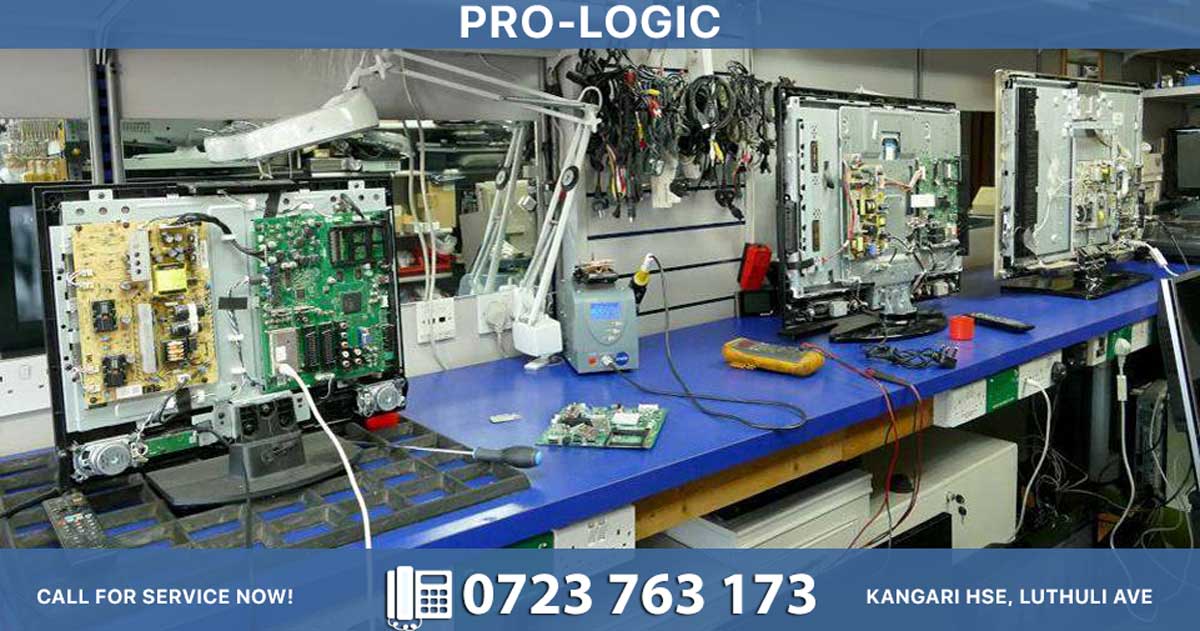
A boot loop occurs when your phone continuously restarts, gets stuck on the boot screen, or repeatedly shows the manufacturer logo without fully starting. This frustrating issue can stem from software glitches, corrupted apps, or hardware problems. Here's a comprehensive step-by-step guide to resolve it.
Understanding Boot Loops
| Symptom | What It Means |
|---|---|
| Phone restarts repeatedly | System can't complete startup process |
| Stuck on boot screen/logo | Device freezes during initialization |
| Endless restarting cycle | Boot process interrupted constantly |
Step 1: Start with Basic Soft Reset
Perform a classic power cycle:
-
Turn off your phone completely - Hold the power button until the device shuts down
-
Wait 5 minutes - Let the phone sit powered off to clear temporary glitches
-
Restart the phone - Power it back on normally
A soft reset often clears temporary software glitches that trigger boot loops.
Step 2: Check Battery and Charge Level
Ensure adequate battery power:
| Action | Purpose |
|---|---|
| Plug into a working charger | Verify battery isn't depleted |
| Charge for 10+ minutes | Ensure sufficient power for startup |
| Check charging indicator | Confirm phone is actually receiving power |
A low battery can prevent the phone from completing boot sequence.
Step 3: Perform a Force Restart
Force a hard reset to interrupt the loop:
-
Hold power button for 10 seconds - This forces the phone to reset
-
Keep holding until screen goes black - Wait for complete shutdown
-
Release and wait - Let the phone sit for a few seconds
-
Power on normally - Press power button to restart
This interrupts the boot loop and gives the phone a fresh start attempt.
Step 4: Boot Into Safe Mode (Android Only)
Safe Mode bypasses third-party apps to identify app-related causes:
| Button Combination | Phone Type |
|---|---|
| Power + Volume Down | Pixel, many Android phones |
| Power + Volume Up | Some Samsung, other Android models |
| Press and hold Power | Some devices during restart |
How to enter Safe Mode:
-
Power off completely if phone is stuck
-
Hold power button to start turning on
-
When logo appears, hold Volume Down (or follow manufacturer's method)
-
"Safe Mode" appears in corner when successfully entered
-
If phone boots in Safe Mode - A third-party app is causing the issue
-
Uninstall recently installed apps - Remove suspicious apps one by one
-
Restart normally - Exit Safe Mode and test
Safe Mode helps identify if a problematic app is triggering the boot loop.
Step 5: Remove External Accessories
Disconnect potential hardware triggers:
-
Remove SD card - Faulty SD cards can cause boot loops
-
Remove USB accessories - Disconnect chargers, headphones, cables
-
Remove phone case - Occasionally cases interfere with buttons
-
Restart phone - Test without any accessories connected
External devices can sometimes trigger boot loop errors.
Step 6: Boot Into Recovery Mode
Access Android Recovery to perform system fixes:
| Button Combination | Device Type |
|---|---|
| Power + Volume Down | Pixel, many Androids |
| Power + Volume Up | Some Samsung models |
| Power + Volume Down + SD button | Some devices |
Steps to enter Recovery Mode:
-
Power off completely - Ensure phone is off
-
Hold correct button combination - Keep holding until recovery screen appears
-
Navigate with volume keys - Use volume buttons to scroll
-
Select with power button - Press power to confirm selection
-
Look for "Android Recovery" menu - You've successfully entered
If you see "No Command" screen:
-
Hold Power + Volume Up simultaneously to access recovery menu
Step 7: Wipe Cache Partition (Safe - No Data Loss)
Clear corrupted cache files without deleting personal data:
-
In Recovery Mode, select "Wipe cache partition"
-
Confirm the action - Press power button to confirm
-
Wait for completion - Shows "cache wipe complete"
-
Select "Reboot system now" - Restart your phone
Wiping cache removes corrupted temporary files that may cause boot loops. This won't delete your personal data.
Step 8: Try CWM Recovery (For Rooted Devices Only)
If your phone is rooted, use custom recovery:
-
Boot into CWM Recovery
-
Wipe cache partition
-
Perform factory reset if needed
-
Reboot system
Custom recovery allows more advanced troubleshooting for rooted devices.
Step 9: Perform Factory Reset (Nuclear Option - Data Loss)
WARNING: This erases ALL data - Only do this if you've backed up or accept data loss
Steps to factory reset in Recovery Mode:
-
In Recovery Menu, select "Wipe data/Factory reset"
-
Confirm "Factory reset" - Select yes
-
Wait for process to complete - Shows progress bar
-
Select "Reboot system now" - Restart phone
-
Phone restarts like new - Fresh installation
Important considerations:
-
Backup data first if possible
-
Only use if cache wipe failed
-
Fixes most software problems
-
Data loss is highly likely even with backup tools
Step 10: Use Android Bootloop Fix Software (PC-Based)
For advanced users with computer access:
| Software | Function |
|---|---|
| Dr.Fone | Repairs system software on PC |
| TFT Unlock Tool | Factory reset for Samsung in End Load mode |
| SmartThings | Reinstall operating system |
Using TFT Unlock Tool for Samsung:
-
Install TFT Unlock Tool on computer
-
Install Samsung USB drivers - Essential for detection
-
Open phone's back cover - Access motherboard
-
Find Test Point area - Small metal pads on motherboard
-
Short pads with tweezers - Connect while holding
-
Connect USB cable - While keeping pads shorted
-
Select reset option in tool - Remove lock/reset/factory reset
-
Wait for completion - Process takes few minutes
-
Phone reboot - Fresh start
Advanced method - Requires technical skill and risks damaging phone if done incorrectly.
Step 11: iPhone-Specific Boot Loop Solutions
For iPhones stuck in boot loop:
-
Force restart - Hold Power + Volume buttons (varies by model)
-
Connect to computer - Use Finder (Mac) or iTunes (Windows)
-
Update iOS - Try updating without reinstalling
-
Restore iPhone - Complete reinstall (data loss)
-
Contact Apple Support - If software solutions fail
Step 12: When to Seek Professional Repair
Visit a technician if:
| Issue | Reason |
|---|---|
| All steps fail - Phone still loops | Hardware damage likely |
| Phone won't enter Recovery Mode | Button or motherboard issue |
| Battery won't charge | Power system failure |
| Physical damage visible | Cracked screen, water damage |
| Recent water exposure | Internal corrosion possible |
| You're uncomfortable with DIY | Risk of further damage |
Professional technicians can diagnose hardware issues and perform board-level repairs.
Troubleshooting Flow Chart
text
Boot Loop Detected ↓ Step 1: Soft Reset (5 min wait) ↓ Step 2: Check Battery & Charge (10+ min) ↓ Step 3: Force Restart (10 sec hold) ↓ Step 4: Safe Mode → Uninstall Apps (Android) ↓ Step 5: Remove External Accessories ↓ Step 6: Recovery Mode → Wipe Cache ↓ Step 7: Factory Reset (if cache fails) ↓ Step 8: Professional Repair (if all fail)
Common Boot Loop Causes
| Cause Category | Specific Issues |
|---|---|
| Software | Corrupted updates, buggy apps, system glitches |
| Hardware | Damaged buttons, battery failure, motherboard issues |
| Storage | Full storage, corrupted files, SD card issues |
| Power | Low battery, faulty charger, power circuit damage |
| External | Faulty accessories, water damage, physical impact |
Prevention Tips
-
Keep software updated - Regular updates prevent bugs
-
Install apps cautiously - Avoid suspicious or unverified apps
-
Maintain battery health - Don't let battery drain completely
-
Backup regularly - Protect data before factory resets
-
Avoid water exposure - Keep phone dry
-
Use quality accessories - Prevent charging-related issues
Most boot loops are software-related and can be fixed through the step-by-step troubleshooting process above. Start with basic methods and progress to more advanced solutions only if needed. If all troubleshooting fails, professional repair is the safest option to avoid permanent damage.