Need TV Repair Services in Nairobi?
Certified technicians dispatched to you — same day.
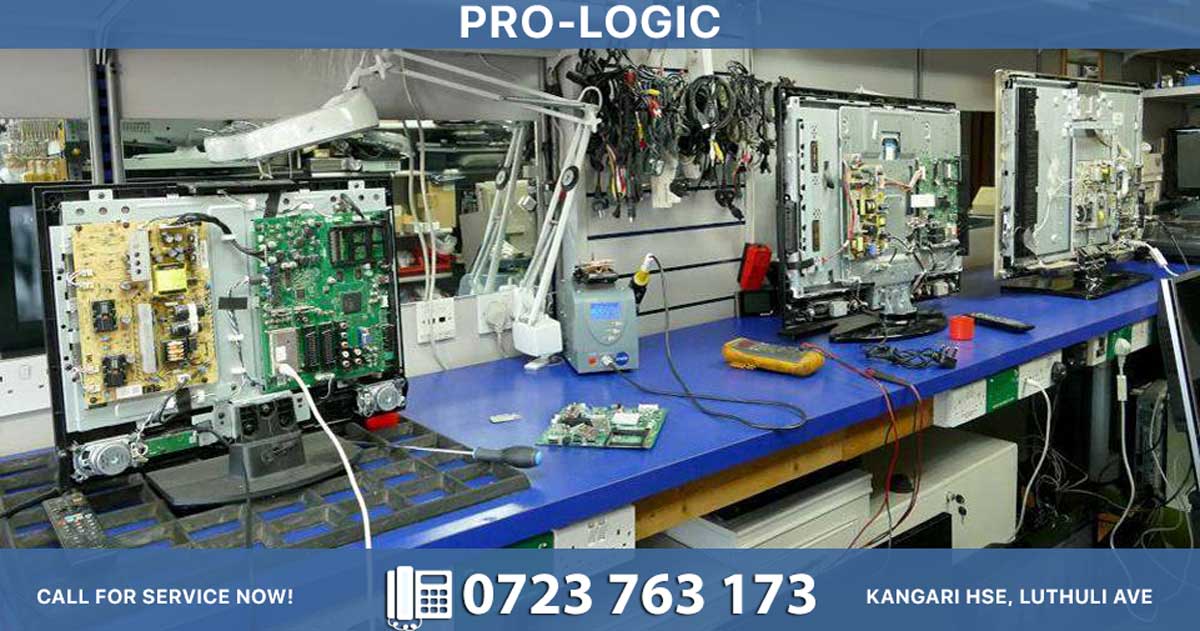
Both failing power supply units (PSU) and motherboard failures can cause similar symptoms like system crashes and boot failures, making diagnosis challenging. However, each has distinct characteristics that help identify which component is the culprit. Understanding these differences ensures you replace the correct part and avoid unnecessary expenses.
Key Symptoms Comparison
| Symptom | Failing Power Supply Unit | Motherboard Failure |
|---|---|---|
| System completely dead | ✓ No power, no LEDs | ✓ No power, no LEDs |
| Power light off | ✓ Device won't turn on | Sometimes (if power circuit failed) |
| PSU fan doesn't turn | ✓ Fan fails when powered on | ✗ Fan may still spin |
| PSU fan noisy | ✓ Loud buzzing/crackling | ✗ Usually normal fan noise |
| PSU too hot to touch | ✓ Excessive heat | ✗ Motherboard may warm but not extreme |
| Burning smell | ✓ From PSU specifically | ✓ From motherboardcomponents |
| Smoke | ✓ Visible smoke from PSU | ✓ Smoke from motherboard components |
| Random shutdowns | ✓ Especially under heavy load | ✓ Anytime, even idle |
| Spontaneous rebooting | ✓ Without warning | ✓ Random, unpredictable |
| BSOD (Blue Screen) | ✓ Frequent, random errors | Sometimes (driver conflicts) |
| System freezing | ✓ During applications | ✓ While idle or light use |
| Intermittent lockups | ✓ During app usage | ✓ Any usage level |
| Continuous beep | ✓ Sounds continuously | ✓ Also possible |
| No beep at power on | ✓ Computer silent | ✓ Also possible |
| Repeating short beeps | ✓ Short beeps repeat | ✓ Also possible |
| POST error codes | ✓ 02X or parity errors | ✓ Various hardware errors |
| Hard drive + fan fail | ✓ Both fail to spin simultaneously | ✗ Usually one works |
| Peripherals erratic | ✓ Flickering lights, disconnects | ✓ Ports not working |
| Electric shocks | ✓ When touching case | ✗ Rare |
| Circuit breaker pops | ✓ When powering on | ✗ Rare |
| Visible damage | ✓ Swollen/leaking PSU capacitors | ✓ Lumpy motherboard capacitors |
| Overheating | ✓ PSU overheats due to fan failure | ✓ Entire system overheats |
Distinctive Power Supply Unit Failure Signs
1. PSU Fan Issues
| Fan Symptom | What It Indicates |
|---|---|
| Fan doesn't turn when powered | PSU completely failed |
| Fan very noisy/buzzing | Fan bearing failure |
| Fan not working at all | Fan failure causing overheating |
The most common PSU failure point is the fan, resulting in excessive noise or complete failure.
2. Voltage Instability
| Problem | Manifestation |
|---|---|
| Irregular 12V, 5V, 3.3V rails | Unstable power delivery |
| Small brownouts | System fails and restarts |
| Peripherals flicker/disconnect | Voltage instability |
| GPU fans spin irregularly | Power-hungry components affected |
Irregular voltage rails (12V, 5V, 3.3V) indicate PSU problems.
3. Physical PSU Damage
| Damage Type | What to Look For |
|---|---|
| Swollen capacitors | Bulging PSU components |
| Leaking PSU | Fluid or residue from unit |
| Scorching marks | Burn marks on PSU casing |
| Bulging PSU case | Distorted PSU shape |
Visible bulging, leaking, or scorching means PSU is definitely failing or already failed.
4. Load-Related Issues
| Symptom | Pattern |
|---|---|
| Shuts down under heavy load | Gaming, rendering, high CPU usage |
| Crashes when opening apps | Specific application load |
| System locks during applications | Consistent with app usage |
PSU failures often manifest when components need more power.
Distinctive Motherboard Failure Signs
1. Random Freezing During Light Use
-
System freezes while idling
-
Freezes when browsing web
-
Crashes during light activity
Random freezing during idle or light tasks strongly indicates motherboard issue.
2. Complete Component Death
| Failure Pattern | Motherboard Indicator |
|---|---|
| Multiple ports fail simultaneously | USB, audio, LAN all dead |
| No power indicators at all | Zero LEDs, no lights |
| No fans spin | Complete power failure |
| No beep sounds | Silent startup |
Completely dead system is the usual symptom of failed motherboard.
3. Physical Motherboard Damage
| Damage | What to Check |
|---|---|
| Lumpy capacitors | Swollen, cracked on board |
| Chipped circuits | Broken motherboard traces |
| Charred transistors | Burnt components on board |
| Burning smell from board | Electrical failure on motherboard |
Lumpy capacitors, chipped circuits, or charred transistors are surefire signs of motherboard damage.
4. Boot and Hardware Detection Issues
| Problem | Motherboard Symptom |
|---|---|
| Boot failures | System won't complete startup |
| Hardware not detected | Components invisible to system |
| POST errors | Various hardware failure codes |
| Debug LEDs show errors | Specific component failure |
Early motherboard symptoms appear as boot failures, instability, or hardware detection issues.
Diagnostic Testing Methods
PSU Testing: Paperclip Test
text
PSU Paperclip Test Steps: 1. Unplug PSU from all components 2. Find 24-pin connector 3. Insert paperclip between pins 15 and 16 (green and black) 4. Plug PSU into wall power 5. Press PSU power button (if available) 6. Observe: Fan should spin = PSU working Fan doesn't spin = PSU failed
Paperclip test determines if PSU fan turns on when jump-started.
Multimeter Voltage Testing
| Pins to Test | Expected Voltage | Indicates |
|---|---|---|
| Pins 16 & 17 (24-pin) | Check between all pins | PSU voltages |
| 12V rail | 11.4V - 12.6V | Stable power |
| 5V rail | 4.75V - 5.25V | Stable power |
| 3.3V rail | 3.14V - 3.47V | Stable power |
Use multimeter to jump pin 16 and 17 on 24-pin connector and check voltages.
Component Swap Testing
| Test | Method | Result Interpretation |
|---|---|---|
| Swap PSU | Replace with known-good PSU | If system works = old PSU failed |
| Swap motherboard | Install different motherboard | If system works = old motherboard failed |
| Test minimal setup | Remove all non-essential components | If crashes stop = PSU voltage issue |
| Monitor voltages | Use BIOS or HWMonitor software | Irregular rails = PSU problems |
Testing with a different PSU isolates the issue definitively.
LED Indicator Check
| Motherboard with LEDs | What It Tells You |
|---|---|
| Debug LEDs on | Motherboard identifies defective component |
| No LEDs lit | Motherboard not working or no power |
| Specific LED color | Matches failed component type |
Motherboard LEDs tell you which component is defective.
Quick Decision Guide
Choose PSU replacement if:
-
✓ PSU fan doesn't turn when powered
-
✓ PSU is too hot to touch
-
✓ Smoke from PSU specifically
-
✓ System shuts under heavy load
-
✓ Irregular voltage rails detected
-
✓ Peripherals flicker or disconnect
-
✓ Electric shocks when touching case
Choose motherboard replacement if:
-
✓ System freezes while idling
-
✓ Multiple components fail simultaneously
-
✓ Visible damage on motherboard
-
✓ Boot failures persist
-
✓ No LEDs lit on motherboard
-
✓ Complete power failure with no signs
-
✓ Burning smell from motherboard
When Symptoms Overlap
Some symptoms appear in both failures:
| Overlapping Symptom | How to Differentiate |
|---|---|
| System completely dead | Check PSU fan: spins = motherboard, doesn't = PSU |
| Random shutdowns | Under load = PSU, idle = motherboard |
| Continuous beep | Test with different PSU first |
| No beep at power on | Check motherboard LEDs |
| Rebooting | Heavy load crashes = PSU, random = motherboard |
| Burning smell | Locate source: PSU vent = PSU, board = motherboard |
Final Diagnosis Flow
System Not Working ↓ Check: Does PSU fan spin when powered? ↙ ↘ YES (fan spins) NO (fan dead) ↓ ↓ Check motherboard PSU is failed LEDs visible? [web:99][web:100] ↙ ↘ YES NO ↓ ↓ Motherboard Check wiring defective or loose connections [web:78] ↓ Test with different PSU [web:101]
By systematically testing these symptoms and using diagnostic methods, you can accurately determine whether your power supply unit or motherboard is failing. Start with the easiest tests (PSU fan check, voltage monitoring) before moving to component swaps, and always verify the faulty component before purchasing replacements.