Need TV Repair Services in Nairobi?
Certified technicians dispatched to you — same day.
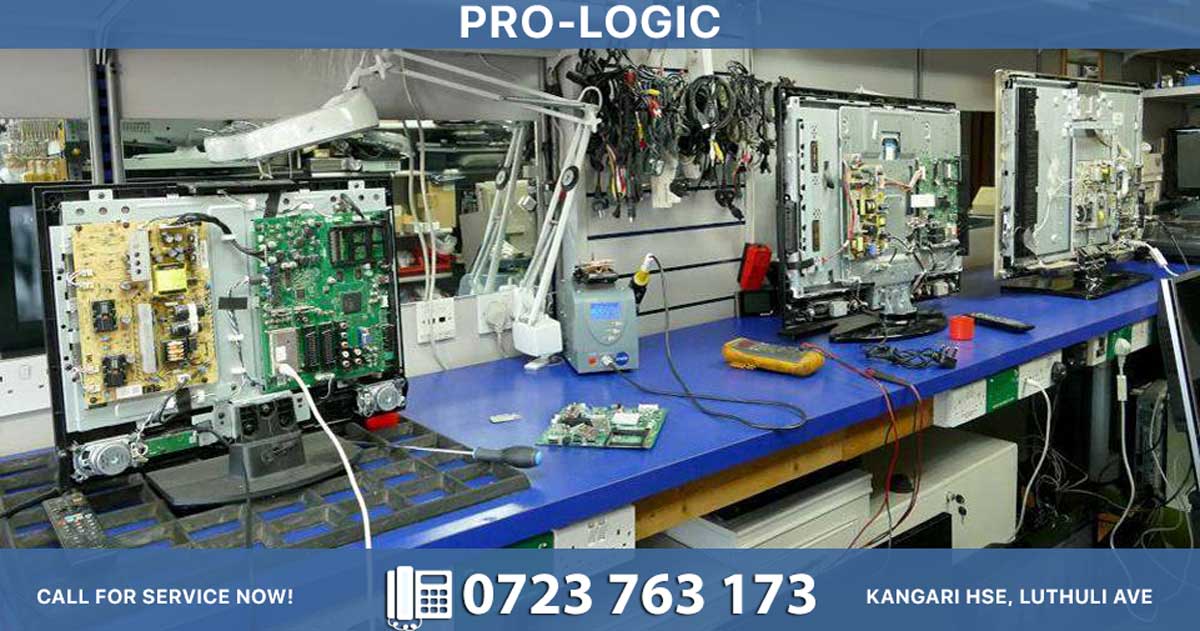
Samsung TV firmware updates can be installed either over‑the‑air (OTA) through your home network or via USB using a flash drive and a computer. Both methods are officially supported, but they differ in convenience, speed, reliability, and when you might prefer one over the other.
How over‑the‑air (Wi‑Fi / Ethernet) updates work
Samsung Smart TVs with an internet connection can check for firmware updates automatically or on demand from the Settings menu. In most recent models, the path is: Settings → Support → Software Update → Update Now; the TV then downloads the update and installs it in the background.
-
Pros of OTA updates
-
Fully automatic and seamless: you do not need a computer or USB drive.
-
Always fetches the latest version for your specific model from Samsung’s servers.
-
Keeps the TV’s smart features, apps, and security patches up to date without manual intervention.
-
-
Cons of OTA updates
-
Requires a stable internet connection; slow or flaky Wi‑Fi can cause the update to stall or fail.
-
Uses your home data, which can matter if you are on a capped plan.
-
If the TV disconnects mid‑update, the firmware can become corrupted and the TV may become unresponsive.
-
How USB‑based firmware updates work
When a TV cannot connect to the internet or OTA updates consistently fail, Samsung allows you to download the firmware file on a PC and install it via USB. The general steps are:
-
Find your TV’s model number (on the back or in Settings → Support → About This TV).
-
Go to the official Samsung support site for your region, then the Downloads / Software section for that TV model.
-
Download the firmware ZIP file, extract it, and copy the
.bin/.imgfile to the root directory of a FAT32‑formatted USB drive. -
Insert the USB into the TV, then go to Settings → Support → Software Update → Update Now → Update via USB and follow the prompts.
-
Pros of USB updates
-
Works when the TV has no internet or a poor Wi‑Fi signal.
-
Faster install because the file is already on the drive; no streaming during the process.
-
Gives you more control: you can pre‑download the file on a fast computer and retry easily if the update fails.
-
-
Cons of USB updates
-
Requires a computer, USB flash drive, and basic tech steps (unzipping files, correct folder placement).
-
If the USB is formatted incorrectly, the firmware file is in a subfolder, or the wrong model’s file is used, the TV may not detect the update.
-
As with OTA, the TV must not be powered off mid‑update, or the firmware can be damaged.
-
When to choose USB vs OTA
-
Use OTA if
-
Your Samsung TV is connected to Wi‑Fi or Ethernet and has a stable connection.
-
You want automatic, hands‑off updates that keep apps and security current without extra steps.
-
-
Use USB if
-
Your TV is offline, has a spotty network, or has repeatedly failed OTA updates.
-
You are troubleshooting a bug, restoring from a corrupted state, or need the absolute latest firmware and want to avoid relying on the TV’s built‑in download.
-
Key best practices for both methods
Whether you update via USB or over‑the‑air, always:
-
Keep the TV on a stable power source and do not turn it off or unplug it during the update.
-
Verify the model number to ensure you download or install the correct firmware.
-
After the update finishes, double‑check Settings → Support → Software Update → Check for Updates to confirm the TV is on the latest version.
In practice, OTA is the default and most convenient way to update Samsung TV firmware, while USB is the reliable fallback when internet or automatic updates fail. Using either method correctly keeps your TV’s performance, security, and smart features working smoothly for years.